In this step-by-step guide, we will explain how to deploy and configure a KMS Host to activate Microsoft Office 2024, 2021, 2019, and 2016 (including Project and Visio) on computers in an enterprise environment. It covers everything corporate system administrators need to know: deploying a KMS host on Windows server, installing matching Office Volume License Pack, activating KMS with CSVLK keys, DNS-based discovery and manual Office client activation against a KMS server using the ospp.vbs command.
What Is Microsoft Office KMS Activation and How It Works
Key Management Service (KMS) technology designed to activate multiple copies of volume-licensed Microsoft products within an organization without requiring each machine to connect directly to Microsoft’s activation servers. It is a preferred way to activate Microsoft products in disconnected or isolated environments.
Volume licensed Microsoft Office versions deployed in a corporate network with a KMS server can automatically discover the KMS host within the network and activate against it. Microsoft Office products activated via KMS are licensed for 180 days. The activation automatically renews every seven days as long as the client successfully connects to the KMS host.
The KMS host is a Windows Server that runs the Volume Activation Service. In order to activate Office clients on a KMS server, the Microsoft Office Volume Licensing Pack must first be installed and activated.
Supported Microsoft Office Versions for KMS Activation
KMS activation officially supports volume-licensed versions of Microsoft Office that are designed for enterprise use. These include perpetual Office versions with Long Term Servicing Channel (LTSC) releases.
| Office Version (including Project and Visio) | Min. Windows Server for KMS Host | End of Support |
| Office LTSC 2024 | Windows Server 2019 + | October 9, 2029 |
| Office LTSC 2021 | Windows Server 2016 + | October 13, 2026 |
| Office 2019 | Windows Server 2012+ | October 14, 2025 (reached) |
| Office 2016 | Windows Server 2008 R2+ | October 14, 2025 (reached) |
Microsoft 365 Apps (ex-Office 365) cannot be activated via KMS because they are subscription-based. Also, the personal, home, and retail versions of Office cannot be activated using KMS.
Deploying a KMS Host for Microsoft Office Activation
To activate your KMS server, you will need to obtain your MS Office 2024/2021/2019/2016 KMS Host Key (Microsoft Customer Specific Volume License, CSVLK). These keys are available to organizations through volume licensing agreements.
How to Get a KMS Host Key (CSVLK) for Microsoft Office
Product keys for a volume licensing program are available in the Microsoft 365 admin center:
- Sign in to the Microsoft 365 admin.
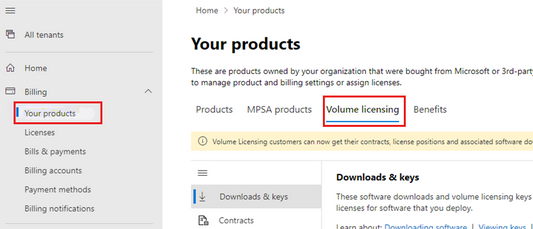
- Navigate to Billing > Your products > Volume licensing tab (the Volume Licensing Administrator role is required to access this section).
- Go to Download and keys tab.
- Copy the KMS key for each version of Office that you want to activate against your KMS server.
Install the Volume Activation Services Role on Windows Server
To activate the volume-licensed versions of Office, you must install and configure a host that runs the KMS service. This can be a computer running Windows Server with the Volume Activation Services role installed.
Install the Volume Activation Service using the Server Manager (Add roles and Features > Server Role > Volume Activation Services > Next > Next > Finish) or using PowerShell:
Install-WindowsFeature -Name VolumeActivation -IncludeAllSubFeature
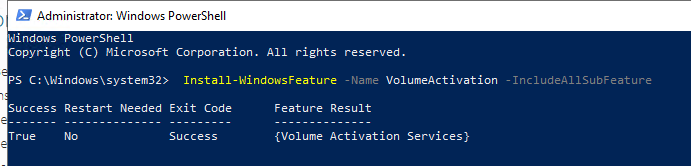
Verify if the VolumeActivation role is installed by running command:
get-WindowsFeature -Name VolumeActivation

Hint. The same KMS host can activate both Windows and Office products.
Install the Microsoft Office Volume License Pack on the KMS Host
Depending on the version of Office associated with your CSVLK key, you need to download and install the matching Microsoft Office Volume License Pack versions on your KMS host:
Links for downloading the Microsoft Office Volume License Pack
| Office Version | Volume License Pack Download Links |
|---|---|
| Office LTSC 2024 | |
| Office LTSC 2021 | |
| Office 2019 | |
| Office 2016 |
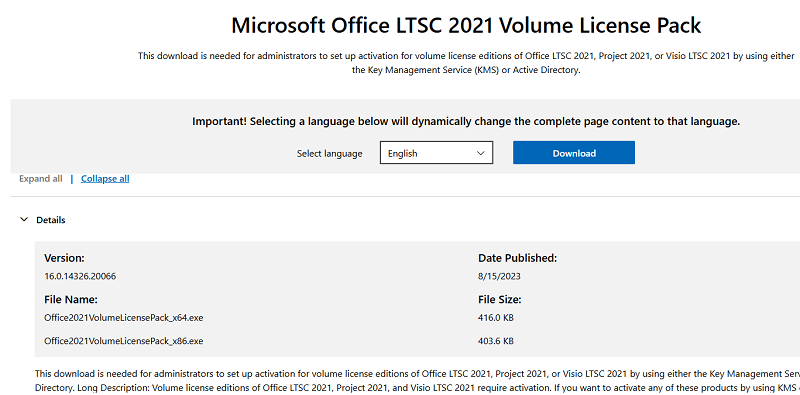
Run the file that you downloaded (for example, Office2021VolumeLicensePack_x64.exe) as an administrator.

Configure and Activate the KMS Host
The Volume Activation Tools wizard will prompt you to choose between two KMS activation methods for Office:
- Key Management Service (KMS) — direct activation via contacting a KMS host computer on your network (both for domain and workgroup computers).
- Active Directory-Based Activation (ADBA) — Active Directory services are used to activate Office on a domain-joined computer.

MS Office KMS Activation Method
If you are going to use the direct KMS activation:
- Select the Key Management service, set your KMS server FQDN name, and install the KMS Host Key (CSVLK) that you previously copied from the Microsoft Admin Center. You can also install the KMS host key later by using the following command:
slmgr -ipk <Office-2024-CSVLK-KMS-Host-Key>
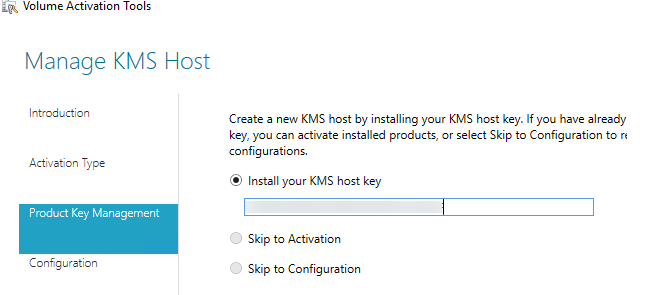
- Select the KMS host activation method, either by phone or online (requires Internet access). Activating a KMS host is a one-time operation;

- If the Office KMS Pack is successfully activated, you will see the Licensed status in the Summary window.

The KMS host automatically creates a new SRV resource record in your domain’s DNS zone. It allows clients to automatically discover your KMS host in the domain. Check to see if the SRV record is created and a KMS hostname that it points to using the nslookup command:
nslookup -type=srv _vlmcs._tcp
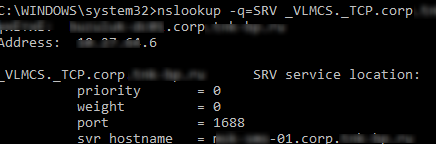
To check if the SRV record is created, you can use PowerShell command:
Resolve-DnsName -Type SRV _vlmcs._tcp.contoso.com
By default, clients connect to the KMS activation server via TCP port 1688. Check if this port is opened in Windows Firewall:
Enable-NetFirewallRule -Name SPPSVC-In-TCP
Microsoft Office Active Directory-Based Activation (ADBA)
If you want to use Active Directory-Based Activation, select this option in your Volume Activation Tools wizard.
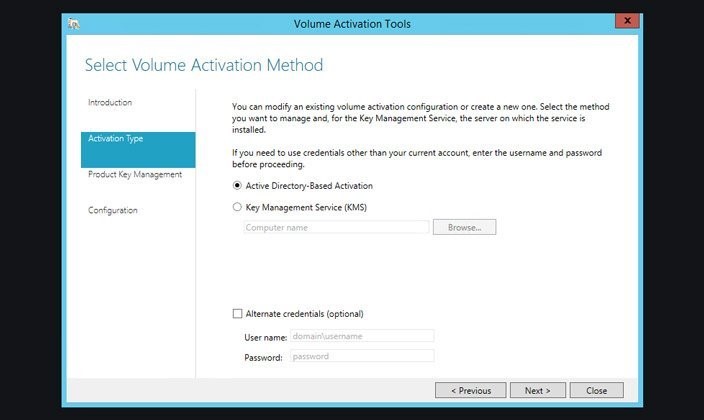
Then specify the KMS host key (CSVLK) and enter the display name for a new activation object (optional).
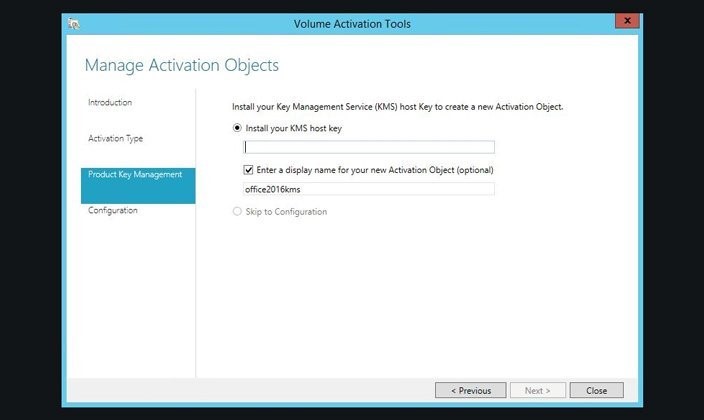
It remains to activate the KMS host (online or by phone call).

Check the KMS Host Status
To check the status of the MS Office KMS host, use the following command:
- For Office 2016: slmgr.vbs /dlv 98ebfe73-2084-4c97-932c-c0cd1643bea7
- For Office 2019: slmgr.vbs /dlv 70512334-47B4-44DB-A233-BE5EA33B914C
- For Office 2021 LTSC: slmgr.vbs /dlv 47F3B983-7C53-4D45-ABC6-BCD91E2DD90A
- For Office 2024 LTSC: slmgr.vbs /dlv F3D89BBF-C0EC-47CE-A8FA-E5A5F97E447F
Verify that the Office Volume License Pack is successfully installed, activated, and ready to activate MS Office clients on your network:
slmgr.vbs /dli all
Name: Office 19, Office19KMSHost2019VL_KMS_Host
Description: Office 19. Volume KMS channel
License Status: Licensed
This output shows some useful info:
- Current count — the number of clients activated on this KMS host;
- Listening port — the default 1688 TCP port is used;
- DNS publishing — automatic publication of the srv _vlmcs._tcp record in DNS is enabled;
- Total requests received — how many clients have tried to connect to this KMS host in the last 30 days.

How to Activate Microsoft Office Clients on KMS Server
Automatic KMS Activation via DNS Discovery
All volume-licensed versions of Office, including Office LTSC 2024, are installed with a Generic Volume License Key (GVLK). These MS Office clients can automatically discover the KMS host in DNS via the _vlmcs._tcp SRV record and perform KMS activation without user interaction.
Office KMS clients maintain activation through periodic renewals with the host server. The next table describes the Office KMS activation lifecycle:
| Status | Duration | Office License State |
|---|---|---|
| Initial Activation | Successful KMS activation grants 180 days | Fully licensed state |
| Activation Renewal | Every 7 days automatically | Extends to another 180 days |
| Grace Period | 30 days after 180-day expiry | “Out-of-tolerance” warnings appear; Office remains functional |
| Expired License | After 30-day grace | Activation required; reduced functionality |
Switch Microsoft Office from Retail or MAK to Volume License Key (GVLK)
If an Office product is installed on a computer with a Retail or MAK (Multiple Activation Key) key, you can manually set the GVLK key to switch it to a Volume License branch.
Copy the GVLK key for your version of Office 2024, 2021, 2019, 2016 (or Office Professional Plus/Standard, Project Professional/Standard, Visio Pro/Standard, Access, Excel, Outlook, Word, Skype for Business) from the following link.

Open an elevated command prompt and navigate to the folder where your Microsoft Office installation is located (“%ProgramFiles%\Microsoft Office\Office16 or “%ProgramFiles(x86)%\Microsoft Office\Office16\):
cd "%ProgramFiles%\Microsoft Office\Office16\"
Use the ospp.vbs command to install the GVLK Office key on a client:
cscript ospp.vbs /inpkey:xxxxx-xxxxx-xxxxx-xxxxx-xxxxx
Restart your computer and the Office instance should automatically activate against the KMS host.

How to Manually Activate Microsoft Office via KMS Server
If the KMS server is not published in Active Directory, or if you need to activate clients from another domain or workgroup, you can manually activate those clients by specifying the KMS host directly. The built-in ospp.vbs script is used for managing manual activation of Microsoft Office.
Open an elevated CMD and navigate to the Office installation folder by using the CD command. Default locations are:
Office 32-bit:
cd "%ProgramFiles(x86)%\Microsoft Office\Office16\"
Office 64-bit:
cd "%ProgramFiles%\Microsoft Office\Office16\"
Install the GVLK key (if not already done):
cscript ospp.vbs /inpkey:xxxxx-xxxxx-xxxxx-xxxxx-xxxxx
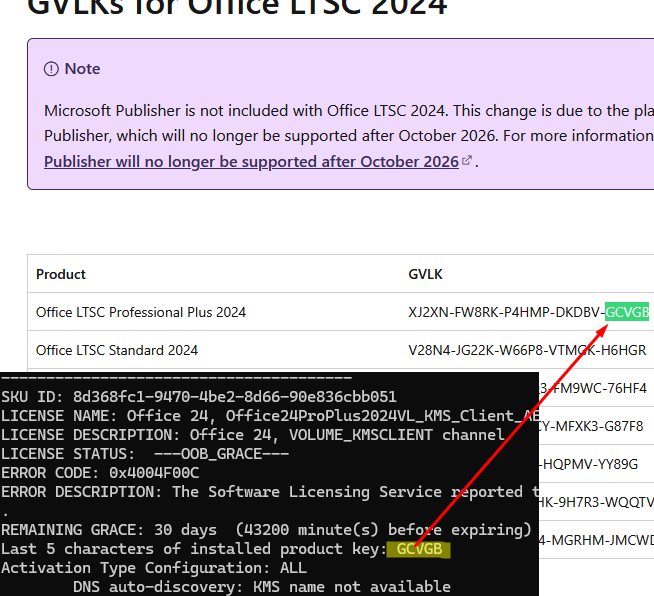
You can check if the correct GVLK key has been installed by looking at the last characters of the installed product key returned by the following command:
cscript ospp.vbs /dstatusall
Compare it with the public GVLK keys on the Microsoft Learn website. (https://learn.microsoft.com/en-us/office/volume-license-activation/gvlks).
Set the target KMS host name:
cscript ospp.vbs /sethst:kms01.yourdomain.com
Set the KMS server port number (optionally):
cscript ospp.vbs /setprt:1688
Note. Another option is to set the KMS host address and port directly in the registry:
Set-ItemProperty -Path "HKLM:\SOFTWARE\Microsoft\OfficeSoftwareProtectionPlatform" -Name "KeyManagementServiceName" -Value "kms01.yourdomain.com"

Set-ItemProperty -Path "HKLM:\SOFTWARE\Microsoft\OfficeSoftwareProtectionPlatform" -Name "KeyManagementServicePort" -Value "1688"
Activate your copy of Office on the KMS server:
cscript ospp.vbs /act

Check the Office activation status:
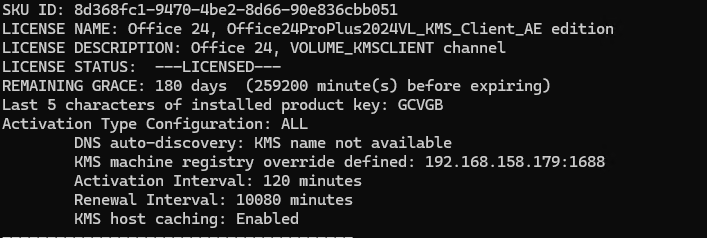
cscript ospp.vbs /dstatusall
SKU ID: 8d368fc1-9470-4be2-8d66-90e836cbb051
LICENSE NAME: Office 24, Office24ProPlus2024VL_KMS_Client_AE edition
LICENSE DESCRIPTION: Office 24, VOLUME_KMSCLIENT channel
LICENSE STATUS: —LICENSED—
REMAINING GRACE: 180 days (259200 minute(s) before expiring)
Last 5 characters of installed product key: GCVGB
Activation Type Configuration: ALL
DNS auto-discovery: KMS name not available
KMS machine registry override defined: 192.168.158.179:1688
Activation Interval: 120 minutes
Renewal Interval: 10080 minutes
KMS host caching: Enabled
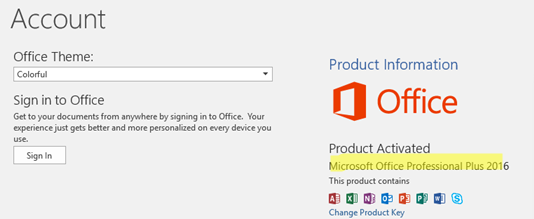
Or run any MS Office product, go to File > Account and check the activation status.
To manually renew Office activation on a KMS host, run:
cscript ospp.vbs /act
Optional. In some cases, you may first need to uninstall any existing Office license key.
List installed keys:
cscript ospp.vbs /dstatusRemove any installed Office Keys except GVLK:
cscript ospp.vbs /unpkey:VMFTK
Common Microsoft Office KMS Activation Issues
If the Office activation fails, you can check for error codes using the command:
cscript ospp.vbs /ddescr <error_code>
Most common errors that can occur when using a Microsoft Office KMS activation:
| Issue | Cause | Fix |
|---|---|---|
| 0xC004F074 “KMS host not available” | DNS SRV not resolving; firewall blocks port 1688 | Verify _vlmcs._tcp SRV records in DNS; TNC kms-server -port 1688; open TCP/1688 port on a KMS host |
| 0xC004F038 “Request to KMS denied” | Wrong CSVLK on the KMS host; no Volume License Pack | The CSVLK is not installed on a KMS host. Install matching Office VL Pack on host. |
| “Product key not valid” | Invalid Office key install | Install correct GVLK key matching your Office versions |
| “Activation threshold not reached” | <5 Office clients | KMS host won’t activate Office until it receives at least 5 activation requests from Office clients (Project/Visio included). Once 5th client requests, all 5 activate retroactively. |
How does Office KMS activation work?
A KMS host running on Windows Server activates Office clients inside the corporate network. Office clients automatically discover the KMS host via DNS and activate for 180 days, renewing every 7 days as long as they can reach the KMS server.
Which Microsoft Office versions support KMS activation?
KMS supports volume-licensed (VL) Office editions only, including:
- Office LTSC 2024
- Office LTSC 2021
- Office 2019
- Office 2016
(Project and Visio VL editions are supported as well.)
Retail, Home, and Microsoft 365 Apps (subscription-based) cannot be activated using KMS.
What Windows Server version is required for an Office KMS host?
Minimum supported Windows Server versions:
- Office LTSC 2024 — Windows Server 2019+
- Office LTSC 2021 — Windows Server 2016+
- Office 2019 — Windows Server 2012+
- Office 2016 — Windows Server 2008 R2+
What is a CSVLK (KMS Host Key)?
A CSVLK (Customer Specific Volume License Key) is a special KMS host key used to activate the Office Volume License Pack on a KMS server. It is obtained from the Microsoft 365 Admin Center under Volume Licensing.
Do I need a separate KMS server for Windows and Office?
No. A single KMS host can activate both Windows and Microsoft Office products, as long as the required Volume License Packs are installed.
What activation methods are available for Office on a KMS host?
Two methods are supported:
- KMS (Key Management Service) — clients activate directly against the KMS host
- ADBA (Active Directory-Based Activation) — activation via Active Directory for domain-joined computers