

Why Non-Administrators Can’t Install Printer Drivers by Default?
By default, Windows blocks printer driver installation for non-admins because drivers operate in a privileged system context. However, there are only a few controlled ways to safely bypass this restriction without granting full admin rights. In this tutorial, we will cover the Windows security model and the three supported methods to allow printer installation.
Decision Flow: How to Choose the Correct Method?
Use V4 drivers when:
- print server config is under your control
- vendor provides V4 driver
- you have a modern Windows environment
Use Point & Print (GPO) when:
- multiple users + central print server
- there are mixed driver types (V3/V4)
- you have an enterprise environment with Active Directory
Use registry override only when:
- you can’t replace legacy drivers
- urgent migration/troubleshooting
- this admin access window is temporary
Use Microsoft Universal Print when:
- devices are Entra ID joined
- Microsoft Intune is used
- no on-premises print server is required
- users work remotely/in hybrid environments
How Windows Printer Driver Installation Security Works
Windows restricts printer driver installation for standard users because printer drivers operate with elevated system privileges and can affect OS security and stability.
To reduce security risks, Windows uses a layered trust model for printer installation. Non-administrators can install printers only in specific trusted scenarios:
- Pre-installed drivers. These are already trusted on the device.
- Type 4 (V4) drivers. It is a user-mode driver model that does not require elevation.
- Trusted print servers (Point & Print). You can control installation path remotely.
In real enterprise environments, Windows printing is not configured as isolated features. It is managed as a layered trust system:
- driver capability (V4 vs V3)
- infrastructure trust (print servers)
- policy enforcement (GPO/security rules)
We recommend you to use V4 drivers whenever possible (they reduce client-side driver installation requirements and improve security).
Non-Admin Users Can’t Install Driver from Shared Printer
Any printer shared via a print server can be manually connected by Windows users. Just open list of printers on the print server (Win+R > \\YourPrintServerName), right-click on the shared printer you want to use and click Connect.

Cases When No Admin Rights Are Needed
Such a shared printer will be added to your user profile without prompting for elevation in the following cases:
- If a printer driver used for this printer is already pre-installed (added to the Driver Store) on your computer;
- If a Type 4 User Mode printer driver is used for shared printer. V4 drivers can reduce/eliminate the need for client-side driver installation and are preferred for modern Windows printing. However, whether a standard user can connect to a shared printer without elevation still depends on the print deployment method and applicable Windows policies.
Pre-stage Printer Drivers with PnPUtil
You can pre-install printer drivers on client machines before users connect to shared printers. Once the driver is already present in the Windows Driver Store, non-admin users can connect the printer without elevation prompts.
You can pre-stage drivers manually/through software deployment tools. The following command imports all matching driver INF files into the local Windows Driver Store and installs them on the machine:
pnputil /add-driver "C:\Drivers\Printer\*.inf" /subdirs /install
Copy or deploy the driver package to the client first, then stage it into the Driver Store. The approach described above is commonly used in enterprise environments where:
- users do not have local admin permissions;
- legacy V3 drivers are still required;
- organizations want to avoid Point & Print elevation prompts;
- printer deployment is automated through scripts/endpoint management tools.
In other cases, if the printer driver is missing, the UAC Printer driver software installation window will appear, and you will be asked to enter the administrator credentials to install the driver.

Install the V4 Printer Drivers on the Windows Print Server
Important! In case you’re working with modern Windows printing, you should prefer the Microsoft IPP inbox class driver and the modern print platform where supported. When a vendor-specific driver is required, prefer a supported V4 driver over legacy V3 drivers when possible.
How to Check Driver Type in Print Management Console
You can check the type of drivers installed on the print server using the Print Management Console. Follow the steps below:
- Open the printmanagement.msc MMC snap-in on the print server;
- In the top menu, select View > Add/Remove Columns;
- Add the Type column to the list of driver properties displayed;

- For new v4-aware print drivers, the Type field will show Type 4 – User Mode. Shared printers with such drivers can be connected without administrator rights.
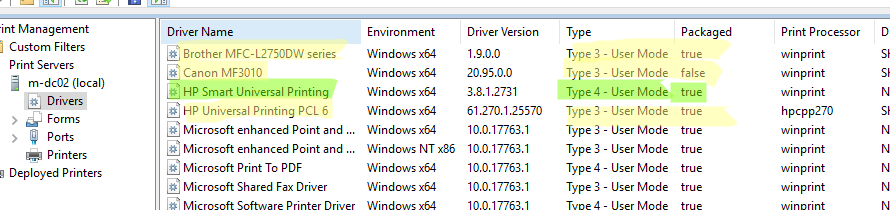
This is the safest and easiest way to allow non-administrators to install printers. For example, for Hewlett-Packard printers, you can use the HP Smart Universal Printing Driver for Windows V4 (64-bit).
If in your case all drivers are Type 3 and no V4 alternative exists, you need to proceed to the Point and Print GPO method that is described below.
Replacing V3 Drivers with V4 Drivers
However, not all vendors provide print drivers in v4 format. If only Type 3 (V3) printer drivers are available for a shared printer, you need to skip to the next section which describes how to allow drivers to be installed from trusted print servers using the Point and Print policy.
In this case non-admin users can only manually install a printer driver from a print server that meets the following requirements:
- The driver must be signed with a trusted digital signature;
- The driver must be packaged (Package-aware v3print drivers). Non-admin users cannot install unpacked (non-package-aware) drivers via Point and Print Restrictions policy. Package-aware print driver contains the True value in the Packaged column.
Microsoft Universal Print (Cloud-Managed Printing)
Nowadays a majority of admins increasingly use Microsoft Universal Print (instead of traditional Windows print servers) for modern Microsoft 365 environments. This printing service is a cloud-based and integrates with Microsoft Entra ID (this allows users to discover and connect printers without relying on on-premises print servers).
Here are the key advantages of Microsoft Universal Print:
- No dedicated Windows print server required;
- Native integration with Microsoft Entra ID;
- Simplified printer deployment through Microsoft Intune;
- Reduced need for printer driver installation on client devices;
- Better support for remote and hybrid work cases.
Note that in cloud-managed environments (where devices are Microsoft Entra joined and managed through Intune), Universal Print is often the preferred option.
Important. Keep in mind that Microsoft Universal Print requires appropriate licensing. It is included with some Microsoft 365 and Windows enterprise subscriptions, while other environments may require additional Universal Print licenses. You should always check current licensing requirements before planning a deployment.
Allow Printer Driver Installation with Group Policy (GPO)
Enabling Point and Print Restrictions Policy with GPO
Point and Print is a mechanism that allows users to install printers from a server while restricting driver sources for security reasons. The Point and Print Restrictions policy allows you to specify trusted print servers from which users can download and install drivers without UAC elevation.
- Open the domain Group Policy Management console (gpmc.msc), right-click the Active Directory OU (AD container) containing the computers to which you want to apply the policy, and create a new GPO;
- Edit your GPO;

- Go to Computer Configuration > Policies > Administrative Templates > Printers;
- Enable the policy Point and Print Restrictions;
- Check the option Users can only point and print to these servers. Enter the names (FQDNs) of the trusted print servers, separated by semicolons;
- For the last two options, select Do not show warning or elevation prompt;

Save your changes and edit the Package Point and print – Approved servers policy.
- Change the policy state to Enabled;
- Click the Show and add your trusted print server FQDNs.

Then navigate to Computer Configuration > Policies > Windows Settings > Security Settings > Local Policies > Security Options. Disable the policy Device: Prevent users from installing printer drivers.

After applying the GPO, you should check if it was successfully applied:
gpresult /h C:\Temp\gpresult.html
Open the generated report and verify the printer-related policies. You can also check the effective Point and Print config directly:
Get-ItemProperty `
"HKLM:\Software\Policies\Microsoft\Windows NT\Printers\PointAndPrint" `
-Name RestrictDriverInstallationToAdministrators
A value of 0 disables the administrator-only restriction, while 1 restricts printer driver installation to admins.
Security limitations after PrintNightmare (what changed)
After PrintNightmare vulnerability (CVE-2021-34481), Windows enforces stricter Point & Print rules. Even trusted print servers may require elevation unless explicitly allowed through policy.
You can work around the new requirements by disabling the GPO option Limit print driver installation to Administrator under Computer Configuration > Administrative Templates > Printers (should be used rarely due to security risks).

If this option is missing in the GPO console, you will need to update the administrative template (ADMX) files on the Active Directory domain controller, or you can enable this setting through the registry.
Limit print driver installation to Administrator
We do not recommend you to use this method. It bypasses core Windows security controls and should only be used temporarily for troubleshooting or migration.
Disabling the Limit print driver installation to Administrator policy sets the RestrictDriverInstallationToAdministrators registry value to 0 under HKLM\Software\Policies\Microsoft\Windows NT\Printers\PointAndPrint. You can disable this registry key on a single computer by using the command:
reg add "HKEY_LOCAL_MACHINE\Software\Policies\Microsoft\Windows NT\Printers\PointAndPrint" /v RestrictDriverInstallationToAdministrators /t REG_DWORD /d 0 /f
After users have successfully installed the required printers, you should restore the default config:
reg add "HKEY_LOCAL_MACHINE\Software\Policies\Microsoft\Windows NT\Printers\PointAndPrint" /v RestrictDriverInstallationToAdministrators /t REG_DWORD /d 1 /f
The command above re-enables the Windows security control that restricts printer driver installation to admins.
Use Group Policy to deploy registry parameter to domain computers
Create a new registry parameter under the GPO section Computer Configuration > Preferences > Windows Settings > Registry.
- Action: Replace
- Hive: HKEY_LOCAL_MACHINE
- Key path: Software\Policies\Microsoft\Windows NT\Printers\PointAndPrint
- Value name: RestrictDriverInstallationToAdministrators
- Value type: REG_DWORD
- Value data: 0

Once this option is set, your users will be able to connect shared network printers and install print drivers from trusted print servers.

Important note! However, be very careful about using a value of zero (0) for the RestrictDriverInstallationToAdministrators parameter, as this will make your Windows vulnerable. We recommend that you set this option temporarily while you allow users to install the printer. It is desirable to return this registry key to its default value of one (1) after the printer has been installed.
Update the Group Policy settings on client computers
Now update the Group Policy settings on client computers (reboot or run the gpupdate /force command). This policy allows the non-admin user to manually install any signed package-aware v3 class driver from a trusted print server.
Printers deployed using the GPO are automatically installed on user computers after the Print Restrictions policy is applied to them (requires restart). Windows automatically downloads and installs printer drivers from trusted print servers.
If you try to connect to a printer from a server that is not in the list of trusted servers, an error will appear:
A policy is in effect on your computer which prevents you from connecting to this print queue. Please contact your system administrator.

Wrapping up
| Method | When to use | Security risk |
|---|---|---|
| Universal Print | Cloud-managed Microsoft 365 environments | Low |
| V4 drivers | Modern print servers with Type 4 drivers | Low |
| Point & Print | Hybrid/on-prem environments | Medium |
| Registry override | Temporary troubleshooting only | High |
- You should always prefer V4 drivers.
- In cloud-managed Microsoft 365 environments, you should consider Microsoft Universal Print before deploying/maintaining traditional print servers.
- Keep in mind that you should use registry override only as a last resort.
- After installation, you should revert its value to 1.
Why can’t non-administrators install printer drivers in Windows?
Windows blocks printer driver installation for non-admin users because drivers run in a highly privileged system context. They can affect system stability and security, so Windows requires elevation or trusted installation paths.
Is it possible to install printer drivers without admin rights?
Yes, but only through controlled and secure mechanisms. Windows allows non-admin installation only in specific cases such as:
- Pre-installed drivers (already in Driver Store)
- Type 4 (V4) user-mode drivers
- Trusted print servers (Point & Print with policies)
Everything else requires administrator privileges.
What are the allowed methods to install printers without admin rights?
There are three supported approaches:
- Type 4 (V4) drivers – modern user-mode drivers that do not require elevation
- Pre-installed drivers – already trusted on the local machine
- Trusted print servers (Point & Print) – controlled via Group Policy (GPO)
What is the safest method to allow printer installation?
The safest and simplest method is using Type 4 (V4) drivers, because:
- They work in user mode
- Reduce the need for local driver installation
- Are recommended for modern Windows environments
- Shift most logic to the print server
Why are print servers important in enterprise environments?
In enterprise setups, printing is controlled through a layered trust model:
- Driver capability (V3 vs V4)
- Infrastructure trust (print servers)
- Policy enforcement (GPO/security rules)
This ensures controlled and secure driver deployment.
What happens if a print server is not trusted?
If a server is not included in the trusted list:
- Printer connection is blocked
- User receives an error message
- Windows prevents driver installation




In our environment, we only have like 3 models of printers, used by 1,000 users.
Would it just make sense to push out drivers for these few model printers to *everyone*, then users can point-and-print to add a printer, but since the *driver* would have been pre-loaded, they won’t get a UAC print?
If so, suggestions on how?
This seems like the best of both worlds – security (only our trusted drivers) + convenience (users can pick which printers they need and install them on their own, without UAC)
I agree that pushing out all of the drivers first would be ideal, but I am not sure how to best do that.
Great article. Thank you for helping me years later. Did not know about Package-aware print drivers.
Hello,
Does this still work with the new the August Patch release for windows 10?
Thanks,
Aj
I was hoping your article would help with August 10, 2021—KB5005033, but it doesn’t. My users can’t install print drivers without admin credentials.
Same here. Is there any solution for this?
we had the same problem and turns out adjusting the printer driver from false to true in the Packaged column solved the issue for us.
For those of us stuck after CVE-2021-34481 — has anyone tried following MS’s instructions? They didn’t work for me. I’m still stuck going around to every computer and manually downloading drivers.
https://support.microsoft.com/en-us/topic/kb5005652-manage-new-point-and-print-default-driver-installation-behavior-cve-2021-34481-873642bf-2634-49c5-a23b-6d8e9a302872
I have tried the Registry Edit and it works but no amount of farting around with the different registry policies worked. Maybe I’m missing the correct ADMX but I just couldn’t get it to go. In the end I made a “create” registry in group policy and pushed that out.
HKEY_LOCAL_MACHINE
SOFTWARE\Policies\Microsoft\Windows NT\Printers\PointAndPrint
RestrictDriverInstallationToAdministrators
REG_DWORD
00000000
Hexadecimal
What is the difference between the following two methods?
– setting it via the group policy `Microsoft Endpoint > Administrative Template > Printers > Point and Print Restrictions`
– setting the registry value for `RestrictDriverInstallationToAdministrators` manually
Because we have rolled out it to all compuers in the tenant and we noticed that it worked for some devices in combination with some printers and it didn’t work for other devices which were using a different printer.
out of all the fixes mentioned, only the last one states it will circumvent the security for the Printnightmare issue. Will all the fixes above compromise the clients as well or is it just the “RestrictDriverInstallationToAdministrators” DWORD change that gives exposure?
The “Do not show warning or elevation prompt” is not an option in my GPO. I only have “Show warning only” and “Show warning and elevation prompt”. I have updated my ADMX files.
Since I do not want the warning, am I obligated to use the reg key to change RestrictDriverInstallationToAdministrators to 0 ?
This worked for me. Here is my situation. We have some unsigned print drivers due to modifying with the canon driver modification utility. Had they not been modified, i would have just pushed them out. But scripting unsigned drivers doesn’t seem to work. So i got this to work with 1) The restrictdriverinstallationtoadministrators to 0, 2) restrict point and print to my print servers, 3) restrict package point and print to my print servers, and 4) disabling the security option to prevent users from installing print drivers, and finally 5) adding those driver classes as described.
Did all of this and still having issues deploying shared printers with GPO.
After all this getting nothing but 0x800704ec errors in event viewer after updating the GPO on the client machine.
As of 5-3-2022 no go; prompting “do you trust” and then asking for admin creds…regardless of GPO and verified regedit keys as explained…
Hi, good article!
Only with this reg add command via GPO (Computer side), i think to solve:
Action: Replace
Hive: HKEY_LOCAL_MACHINE
Key path: Software\Policies\Microsoft\Windows NT\Printers\PointAndPrint
Value name: RestrictDriverInstallationToAdministrators
Value type: REG_DWORD
Value data: 0
BUT, now i updated a printer driver on print server and user cannot instal driver update because they are prompted to use user with admin rights.
There is a solution? User can install printer if they never logged in on pc, if they have a previous login on pc, when try to print, they are prompted to update driver with admin rights.
thanks
The solution is works for us but printer restriction is not working properly. Users can install the printer from the printer server which is not defined in restriction settings.
Please advise.
Thanks muchly.
Helped me solve print sharing this morning as a matter of urgency.
Only issue is there are so many steps to follow. I had to repeat the steps 3 times for 3 different printers, despite them all being Canon MFC’s and using the same driver. I was creating the GPO’s from the Printer Management console and did not see a way to select multiple printers. I’m mainly a Linux admin so I could have missed something somewhere – be gentle.!
Cheers,
ak.
This no longer works. Not sure what Microsoft did, and I can’t find any information. But as of right now, all users (non-administrators) are able to download and install print drivers regardless of the point and print restrictions policies in place. How do I know? I deployed some printers on a non-authorized print server and users are to able to print..
I’m seeing something similar. I don’t have any GPOs in place to restrict anything printer related on win10 clients. Non-admin users are able to install printers that use type 3 drivers (signed and not packaged). Driving me insane as there is no rock solid reason as to why.
I attempted to try the initial suggestion. Windows + R…gpedit.msc…immediately got window asking for admin credentials….what do I try now?